
Markdown Midget can encrypt a document
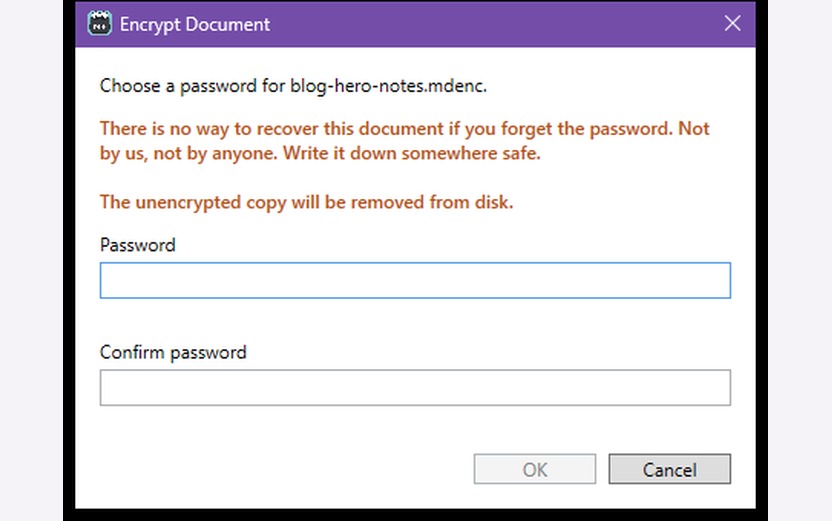
Markdown Midget can lock a single document behind a password, through File ▸ Encrypt Document…, so a file of passwords and account numbers that lives in a synced folder or rides along on a laptop is unreadable as bytes on disk. Headings, lists, and tables look like a page while you type, which is the whole idea if you would rather keep notes than keep punctuation, and nothing is uploaded from your Windows PC.
The product post walks the formatted view and the WordPad menus, and you download Markdown Midget v1.0.0-rc2.
Locking a file
There is no way to recover this document if you forget the password. Not by us, not by anyone. Write it down somewhere safe. That sentence is on the Encrypt Document dialog, in orange, before you set a password. File ▸ Encrypt Document… asks you to choose a password twice. If you started from a readable .md, a second line says the unencrypted copy will be removed from disk. File ▸ Convert to Unencrypted… goes the other way, with a warning that anyone with the new file can read it. File ▸ Change Password… encrypts the file again under the new password and saves it straight away, with no extra prompt after you confirm. Save As… lists Secure Markdown (*.mdenc) as a type; picking it is the same as encrypting.
Once the file is open, it is ordinary markdown: themes, spell check, printing, and find all still work. The decrypted text lives only in memory. Markdown Midget writes a copy of unsaved changes every few seconds in case of a crash; that crash copy is itself encrypted, so nothing plaintext lands on disk. Recovery after a crash asks for the password. Every save writes the new version next to the old one, reads it back to prove it decrypts to your document, then swaps it into place; if that check fails, the old file is left exactly as it was.
Opening it again
Double-click the .mdenc tomorrow and a password prompt appears; a wrong password says so and lets you retry, and Cancel opens nothing. Once you are in, the title bar shows 🔒 [Encrypted].
File ▸ Open lists only regular markdown by default, so tick Show encrypted documents (*.mdenc) in the Open dialog under Edit ▸ Settings… if you want them in that list. Encrypted files always open from Open Recent, a typed name, or a double-click. Double-click works after you run File ▸ Windows Integration ▸ Register as .md editor… once, which also registers the .mdenc type; if you already had Markdown Midget registered, run that command once after updating.
What it can and can’t protect
If someone edits the bytes by hand, Markdown Midget refuses to open the file rather than show a corrupted document. The wrap is AES-256-GCM; the key is derived from the password by Argon2id, the current best practice for resisting password-cracking hardware.
Deleting the original is deletion plus a best-effort scrub, and on an SSD forensic recovery of the old file’s blocks cannot be ruled out — “no accessible copy” is the promise, not forensic erasure. Anything that can read the editor’s process memory while the document is open can see the text, because that is inherent to editing it.
Try it in three steps
- Download Markdown Midget v1.0.0-rc2 and open any
.mdfile. - Choose File ▸ Encrypt Document…, type a password twice, and read the warning.
- Close the window, then double-click the new
.mdenc— you get a password prompt, and the title bar shows 🔒 [Encrypted] once you are in.
When Open used to be able to kill the editor
Locking the file only helps if you can still open it. Windows’ Open and Save dialogs load Explorer add-ons — a sync client’s status overlay, an archiver’s preview handler, a PDF thumbnailer — into whatever process shows them, and a faulty one in a folder you browse can take the whole editor down.
Version 0.9.0-beta4 runs that dialog in a short-lived helper process, so a bad Explorer add-on kills only the helper, and the editor and the document stay up. When the helper dies, Markdown Midget’s own picker takes over for that pick: an address bar, shortcuts to Desktop, Documents, Downloads, drives, and recent folders, a folder tree, and a sortable file list. It loads no Explorer add-ons, so it has no thumbnails, no preview pane, and no shell context menus, on purpose. Always use the built-in file picker under Edit ▸ Settings… is now ticked, and a message says Windows’ file picker closed unexpectedly and that you can turn the built-in picker back off in Edit ▸ Settings…. Tick that checkbox yourself if you want to try the picker without waiting for a crash.
Secure Markdown arrived in v0.9.0-beta1; Open and Save moved into a helper process in v0.9.0-beta4. Current build is v1.0.0-rc2. An encrypted file is still encrypted if you change its name. Double-click it. You should get the Encrypted Document password box. If the window opens with a blank page or unreadable junk instead, that is a bug — open an issue and include that filename.