
Synced Password Troubles
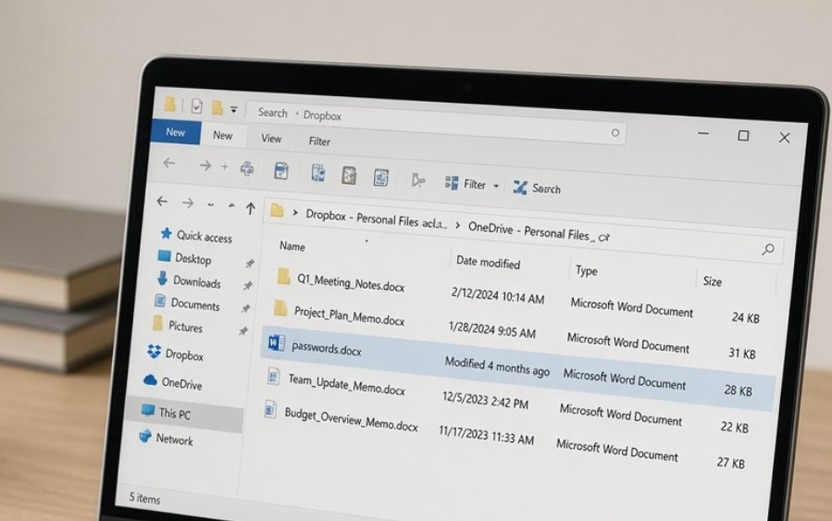
Somewhere in your OneDrive, Dropbox, Google Drive, or SharePoint tree sits a file named passwords.docx — or passwords.xlsx, or secrets.txt — and the sync client treats it like any other memo. The bytes stay readable for anyone who inherits the folder, opens an old share link, or picks up a laptop that still has the client signed in.
Markdown is a compact, highly portable rich-text format: headings, lists, and links as plain text you can open in almost anything, diff in git, and email without a proprietary .docx lock-in. Markdown Midget is a free, low-ceremony Windows editor for that format — WordPad-style menus, a .md on disk, nothing uploaded from your PC — and it can also lock a single document behind a password with File ▸ Encrypt Document…. How the lock works lives in the Secure Markdown post; the product intro is the tour if you have never opened the app.
The file sync will happily copy
IT leads and office managers usually meet this file after the fact. Someone saved vendor logins in a Word doc so the front desk could find them; someone else put Wi-Fi and VPN strings in a spreadsheet; a contractor left secrets.txt in a shared project folder “just for the week.” Sync did its job. Copies landed on every signed-in machine, and often in the provider’s web UI, where a link can outlive the project by months.
Sync copies the bytes exactly as they sit on disk — no encryption arrives for free with the client. Renaming the file, burying it three folders deep, or flipping a “private” toggle in the client leaves those bytes readable the moment someone opens the document.
Encrypt the markdown copy on your PC
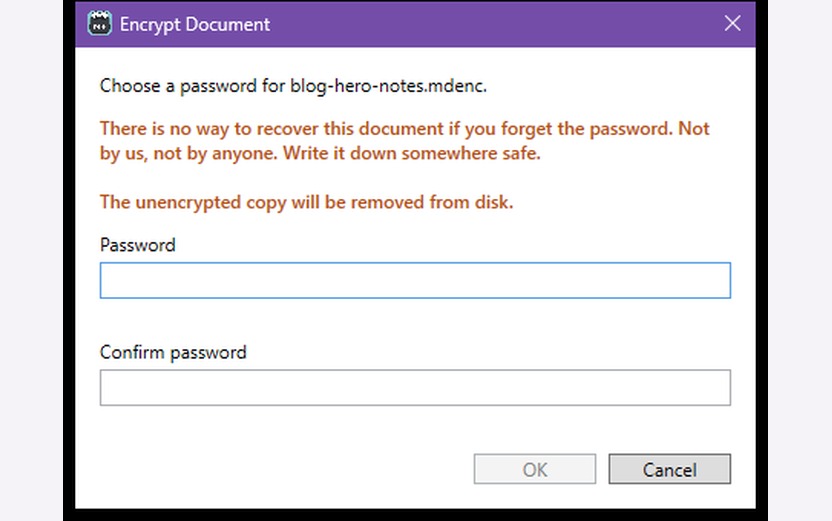
If you can keep those notes as a markdown document on your Windows PC, Markdown Midget will lock that single file behind a password. Choose File ▸ Encrypt Document…, type the password twice, and read the orange warning on the dialog: there is no recovery if you forget it — not by us, not by anyone. The editor writes a .mdenc file (encrypted markdown); the decrypted text lives only in memory while you work; nothing leaves your machine for a Funcular server.
That path does not encrypt passwords.docx in place. Paste or rewrite the contents into Midget first, run File ▸ Encrypt Document…, then remove the readable Word, Excel, or text copy from the synced folder and from any leftover local copies you still control.
The encrypt post already shows the dialog, the title-bar lock once you are in, and what the on-disk wrap does to the bytes. Builds are on the Markdown Midget Releases page when you want to try it on your own machine.
One locked file is not a tenant cleanup
One locked .mdenc does not retire share links that still point at the old .docx, SharePoint permissions that still include last year’s contractor, or the version history the sync provider kept of the plaintext. Those sit outside the editor. If someone can read the Markdown Midget process while the document is open, they can see the text — that comes with editing it. And if you forget the password, the file stays closed for good; write that password down somewhere that is not the synced folder.
If that file is sitting in sync right now
You are not the first office to find a passwords.docx in Dropbox or OneDrive and feel the floor tip. The sync client did what it was built to do; the damage is the readable copies, the share links, and the machines still signed in.
If you want a calm second set of eyes, send a note through Contact Us. Tell us which provider holds the file, roughly how many PCs still sync it, and whether old links or contractors might still reach it. Funcular Labs will write back with a short memo on what to shut down first — or a clear no if we are the wrong shop for this one. That memo is the first deliverable. Anything past it gets a quote before kickoff. There is no rate card on this page.